


Attention
Please make sure to safe a software backup before installing the new version.Please note
- You should allow about 10 minutes for the update.
- your licenses, custom programs and settings will not be overwritten by the update.
- The update should only be performed if the batteries are at least half charged. You can also perform the update during the loading process.
Important for older models with white screen borders:
If you:
- own an older model purchased BEFORE December 2020
- with a white screen border
- that has a software version up to 6.2 PLUS the “Chords” and “Pulse” libraries (important!) installed
please download the update for older models linked below and follow
these installation instructions.
If the last point does not quite apply to you, e.g., you have a version older than 6.2 or you do not have the two libraries installed, please contact us so that we can resolve this together.
If you are unsure, please feel free to contact us at any time and we will be happy to help.
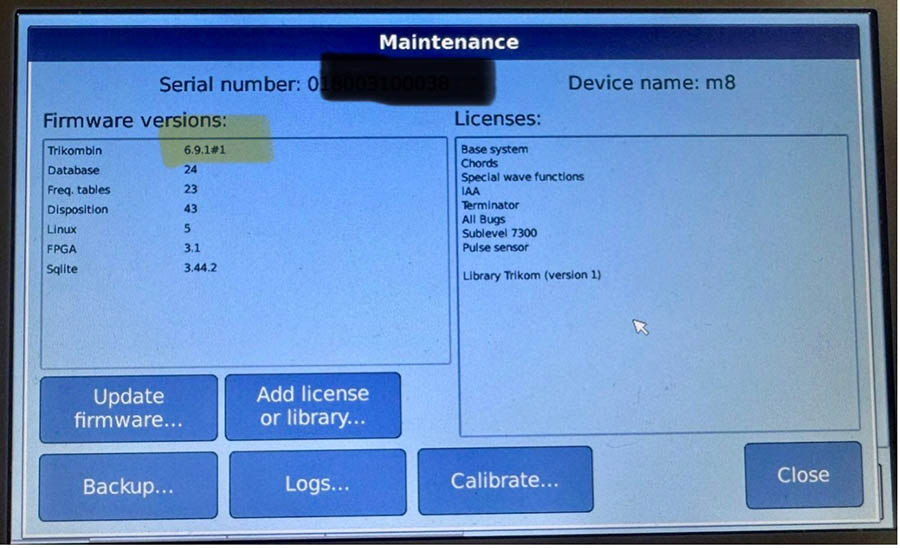
Which version do I have installed?
You can easily check your version number by going to “More” and then “Maintenance.”
Download Update
For Trikombin models bought before December 2020: Here you can download our latest update for the TRIKOMBIN - Software Update 6.10:
Download Update
For Trikombin models purchased as of December 2020 or older models whose computer has been replaced (indicated by the black screen border). Here you can download our latest update for the TRIKOMBIN - Software Update 6.10:
Installation instructions (new devices)
-
- Copy the file
“ tk_2021_sw_update.6_10 .7z ” into the root directory of a USB stick. The root directory should not contain any other files ending with ".7z". - Plug the USB stick into the socket provided on the Trikombin device. It is located under the encoder. Switch the Trikombin device off and on again.
- Wait at least about 15 seconds (the Trikombin takes a few seconds to insert the USB stick). Press the "Maintenance" button on the touch screen. The "Maintenance" dialog box appears. Click on "Update firmware...".
- After a few seconds the message "A newer software version is available. Would you like to update now?" Confirm with "Yes".
- After about 45 seconds the device restarts automatically. Under certain circumstances, the message "Incorrect archive file" may be displayed shortly before the archive is started.
- Switch off the unit.
- Verify the installation
- Copy the file